
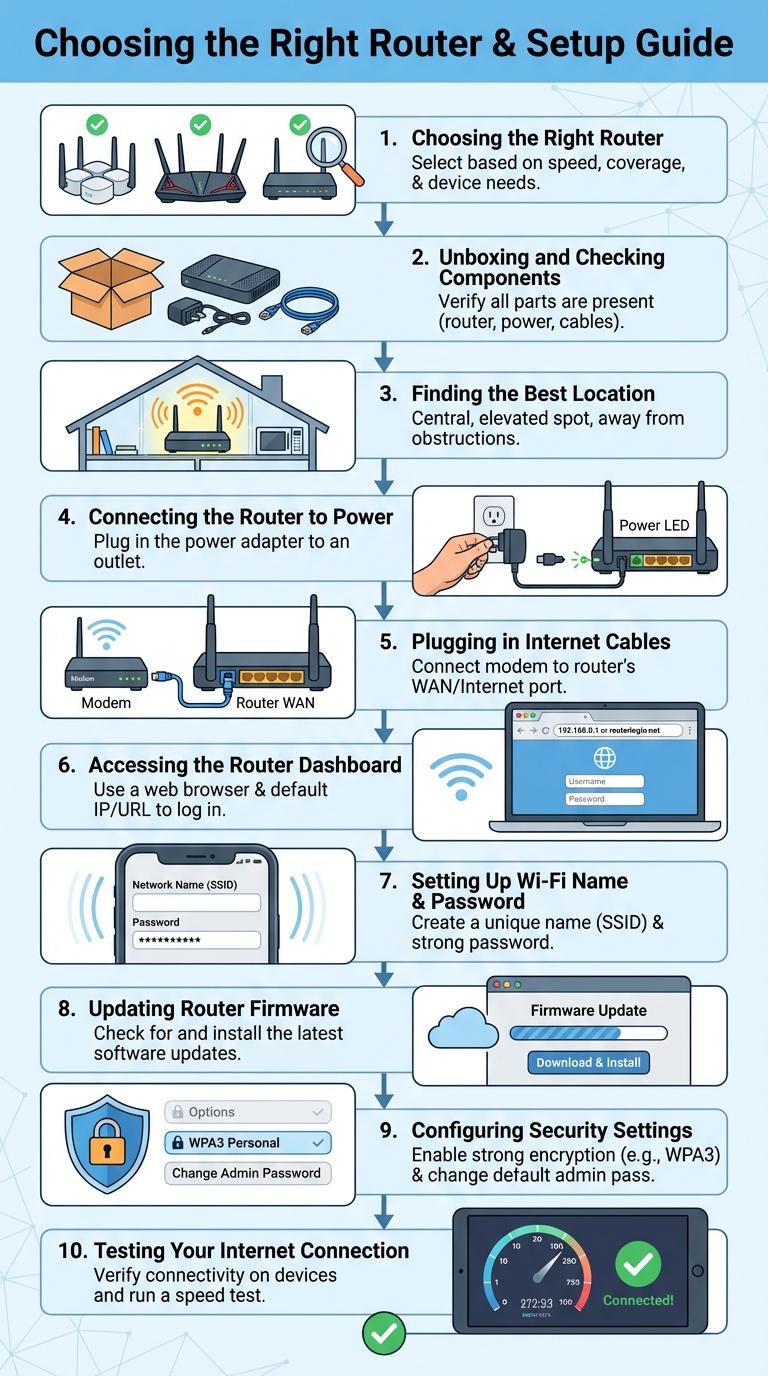
Setting up a router correctly ensures a stable and secure internet connection throughout your home or office. This infographic breaks down the essential steps for configuring your router, from connecting hardware to adjusting settings. Following these guidelines helps maximize network performance and safeguard your devices.
Choosing the Right Router
Choosing the right router is essential for fast and reliable internet connectivity. Consider factors like Wi-Fi standards (Wi-Fi 6 or 5), coverage area, and device compatibility. Select a router with advanced security features and multiple Ethernet ports for optimal performance.
Unboxing and Checking Components
Begin by unboxing your new router carefully and laying out all included components on a flat surface. Verify that essential items such as the power adapter, Ethernet cable, and user manual are present. Inspect each component for any visible damage before proceeding with the setup.
Finding the Best Location
Choosing the optimal location for your router significantly improves wireless signal strength and overall network performance. Place the router centrally within your home or office to maximize coverage and minimize dead zones.
Avoid placing the router near thick walls, metal objects, or electronic devices that cause interference. Elevate the router to a higher position for better signal distribution across all areas.
Connecting the Router to Power
Connecting the router to a power source is the first essential step in setting up your device. Proper power connection ensures the router can initialize and function correctly.
- Locate the Power Adapter - Use the power adapter that came with your router for optimal performance and safety.
- Plug into Router - Insert the power adapter into the router's designated power port, usually labeled "Power" or identified by a circular connector.
- Connect to Electrical Outlet - Securely plug the adapter into a nearby electrical outlet or power strip to supply continuous power to the router.
Plugging in Internet Cables
| Step | Details |
|---|---|
| Locate Internet Port | Find the WAN or Internet port on the router, usually labeled and distinct in color. |
| Connect Modem Cable | Plug the Ethernet cable from the modem into the router's WAN/Internet port securely. |
| Check Cable Type | Use a Cat5e or higher category Ethernet cable for optimal performance. |
| Power On Devices | Turn on both modem and router to establish the internet connection. |
| Verify Connection | Look for solid indicator lights on the router's Internet/WAN port, indicating active connectivity. |
Accessing the Router Dashboard
Accessing the router dashboard is essential for configuring network settings and enhancing security. The dashboard provides a centralized interface to manage all router functions.
To access the dashboard, connect your device to the router via Wi-Fi or Ethernet cable. Open a web browser and enter the router's default IP address, commonly 192.168.1.1 or 192.168.0.1. Log in using the admin credentials found on the router label or user manual to begin setup and customization.
Setting Up Wi-Fi Name & Password
Setting up your router begins with accessing the admin panel through a web browser using the router's IP address, commonly 192.168.1.1. This interface allows you to customize your Wi-Fi name (SSID) and password for secure network access.
Choose a unique SSID that does not reveal personal information to prevent unauthorized connections. Use a strong password combining uppercase and lowercase letters, numbers, and special characters to enhance network security.
Updating Router Firmware
Keeping your router firmware updated is essential for network security and performance. Regular updates protect your device from vulnerabilities and improve functionality.
- Check for Updates - Access the router's admin panel to locate the firmware update section and verify the current version.
- Download Latest Firmware - Visit the manufacturer's official website to download the most recent firmware file compatible with your device.
- Install Firmware Safely - Follow on-screen instructions carefully to upload and install the firmware, avoiding interruptions during the process.
Updating router firmware regularly ensures optimal security and network efficiency.
Configuring Security Settings
How do you configure security settings on a router? Access the router's admin panel using its IP address, usually found on the device label. Change the default username and password to a strong, unique combination to prevent unauthorized access.
What is the best way to secure your Wi-Fi network? Enable WPA3 or WPA2 encryption in the wireless security settings for robust protection. Avoid using outdated encryption methods like WEP that are vulnerable to attacks.
Why is it important to disable WPS on your router? Wi-Fi Protected Setup (WPS) can be exploited by attackers to gain access to your network. Disabling it strengthens your network's security by eliminating this risk.
How can you restrict access to your network devices? Use the router's MAC address filtering feature to allow only trusted devices to connect. This creates an additional layer of security by blocking unknown devices from joining your Wi-Fi.
What role does firmware updates play in router security? Keeping your router's firmware up to date patches security vulnerabilities and improves performance. Regularly check for updates on the manufacturer's website or through the router interface.