
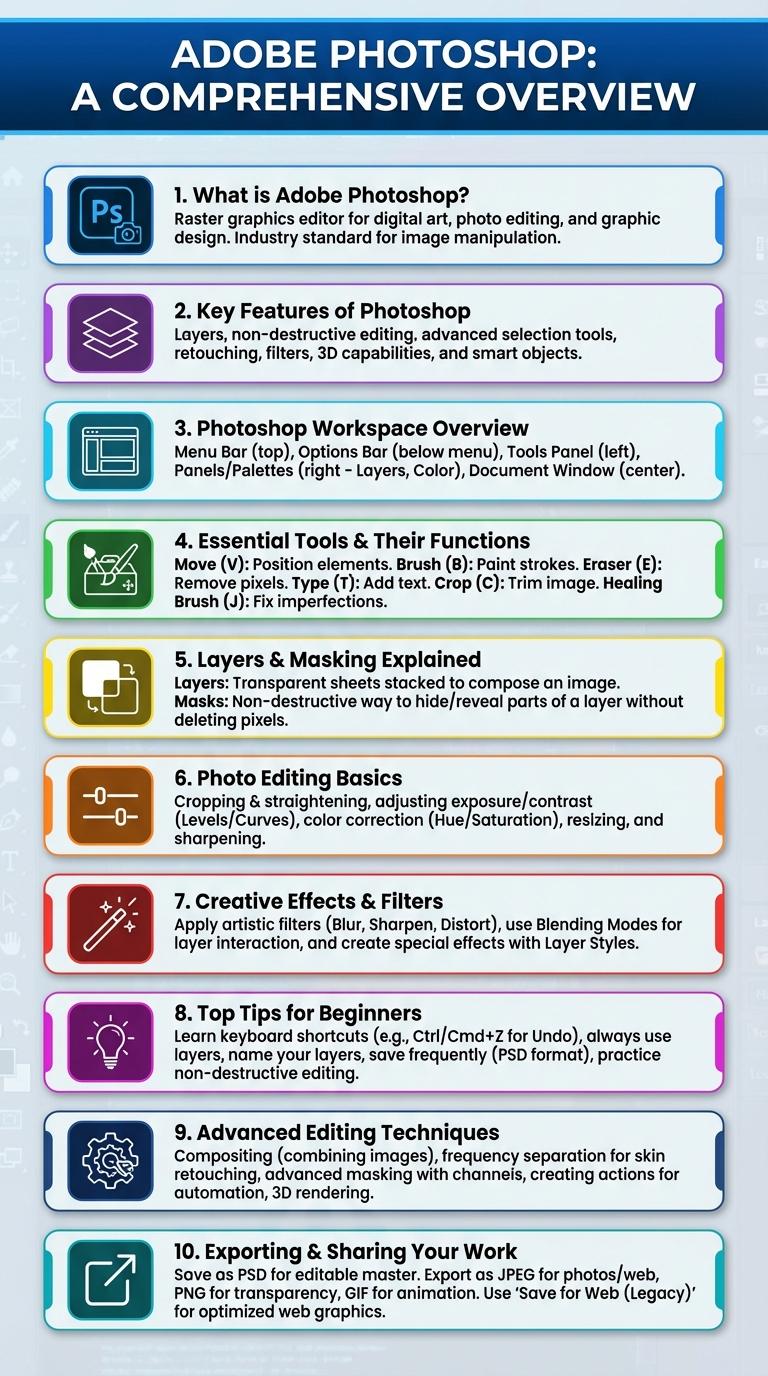
Adobe Photoshop revolutionizes digital design with powerful photo editing and graphic creation tools. This infographic highlights key features, shortcuts, and tips to enhance workflow and creativity. Explore essential Photoshop functions that streamline image manipulation and design efficiency.
What is Adobe Photoshop?
Adobe Photoshop is a powerful graphic design and photo editing software developed by Adobe Inc. It is widely used by professionals and hobbyists for creating and enhancing digital images.
The software offers advanced tools for photo retouching, compositing, and digital painting. It supports a variety of file formats and integrates seamlessly with other Adobe Creative Cloud applications.
Key Features of Photoshop
Adobe Photoshop is a powerful image editing software widely used by professionals and hobbyists for photo retouching, graphic design, and digital art creation. Key features include advanced layer management, a wide range of brushes and filters, and smart selection tools that enhance precision and creativity. Its integration with Adobe Creative Cloud allows seamless workflow across multiple devices and applications.
Photoshop Workspace Overview
Adobe Photoshop is a powerful image editing software widely used by designers and photographers. Its workspace is designed to provide easy access to essential tools and features for efficient editing.
The Photoshop workspace includes the Toolbar, Options Bar, Panels, and the Canvas area. The Toolbar contains tools for selection, painting, and retouching. Panels such as Layers and History help manage the workflow and make complex edits more manageable.
Essential Tools & Their Functions
Adobe Photoshop is a powerful image editing software widely used by photographers and designers. It offers essential tools that enable precise editing and creative enhancements.
- Move Tool - Allows repositioning of selected layers or objects within the canvas for better composition.
- Brush Tool - Enables painting and retouching with customizable brush shapes and sizes.
- Clone Stamp Tool - Copies pixels from one part of an image to another for seamless correction and removal of imperfections.
Layers & Masking Explained
| Feature | Description |
|---|---|
| Layers | Layers act as separate sheets stacked within a Photoshop file, allowing non-destructive editing and complex compositions by manipulating individual elements independently. |
| Layer Types | Includes background layers, image layers, adjustment layers, and text layers. Each serves a unique function, enhancing flexibility in design workflow. |
| Masking | Masks control the visibility of parts of a layer using black, white, and gray values. White reveals, black conceals, and gray offers varying degrees of transparency. |
| Layer Masks | Layer masks allow for precise control over layer transparency and enable seamless blending between multiple layers without permanently erasing pixels. |
| Clipping Masks | Clipping masks make a layer visible only within the confines of the layer beneath it, useful for applying effects or textures confined to specific content shapes. |
Photo Editing Basics
Adobe Photoshop is a leading software for photo editing, offering tools that enhance images with precision and creativity. Understanding the basics of photo editing in Photoshop is essential for producing professional-quality visuals.
- Layers - Layers allow users to stack and organize different elements of an image for non-destructive editing.
- Selection Tools - Selection tools enable precise isolation of parts of an image for targeted adjustments or effects.
- Adjustment Layers - Adjustment layers provide flexible options to modify color, brightness, and contrast without altering the original image.
Mastering these basics in Adobe Photoshop empowers users to transform ordinary photos into stunning images.
Creative Effects & Filters
What creative effects and filters can Adobe Photoshop offer to enhance your images?
Adobe Photoshop provides a wide range of creative effects and filters designed to transform your photos with professional quality. Users can apply artistic styles, blur effects, and texture overlays to achieve unique visual results.
How do Photoshop's filter galleries improve photo editing workflows?
The Filter Gallery organizes effects like Sketch, Distort, and Stylize into an intuitive interface for quick experimentation. It enables users to preview multiple filters in real-time, streamlining the creative process.
Which popular Photoshop effects help simulate real-world art?
Effects such as Oil Paint, Watercolor, and Chalk & Charcoal replicate traditional artistic techniques digitally. These tools allow photographers and designers to produce customized artwork directly within Photoshop.
Can Photoshop filters be customized for individual projects?
Yes, most filters include adjustable parameters, letting users fine-tune effects like intensity, radius, and texture. This flexibility ensures every creative effect fits the specific style and mood of the image.
What role do smart filters play in non-destructive editing?
Smart Filters apply effects to Smart Objects, preserving the original image data. This non-destructive method allows editors to modify or remove filters without sacrificing quality.
Top Tips for Beginners
Adobe Photoshop is the industry-standard software for photo editing and graphic design, offering powerful tools for creative expression. Beginners can enhance their skills by mastering layers, using non-destructive editing techniques like adjustment layers, and learning essential shortcuts to speed up workflow. Understanding basic tools such as the selection, brush, and clone stamp enables users to create professional-looking images effectively.
Advanced Editing Techniques
Adobe Photoshop offers a wide range of advanced editing techniques that empower users to create professional-quality images. Features like layer masks, adjustment layers, and blending modes provide precise control over every aspect of an image.
Advanced tools such as the Pen Tool, Content-Aware Fill, and Smart Objects enable seamless manipulation and retouching. Mastering these techniques can significantly enhance photo restoration, compositing, and digital art projects.