
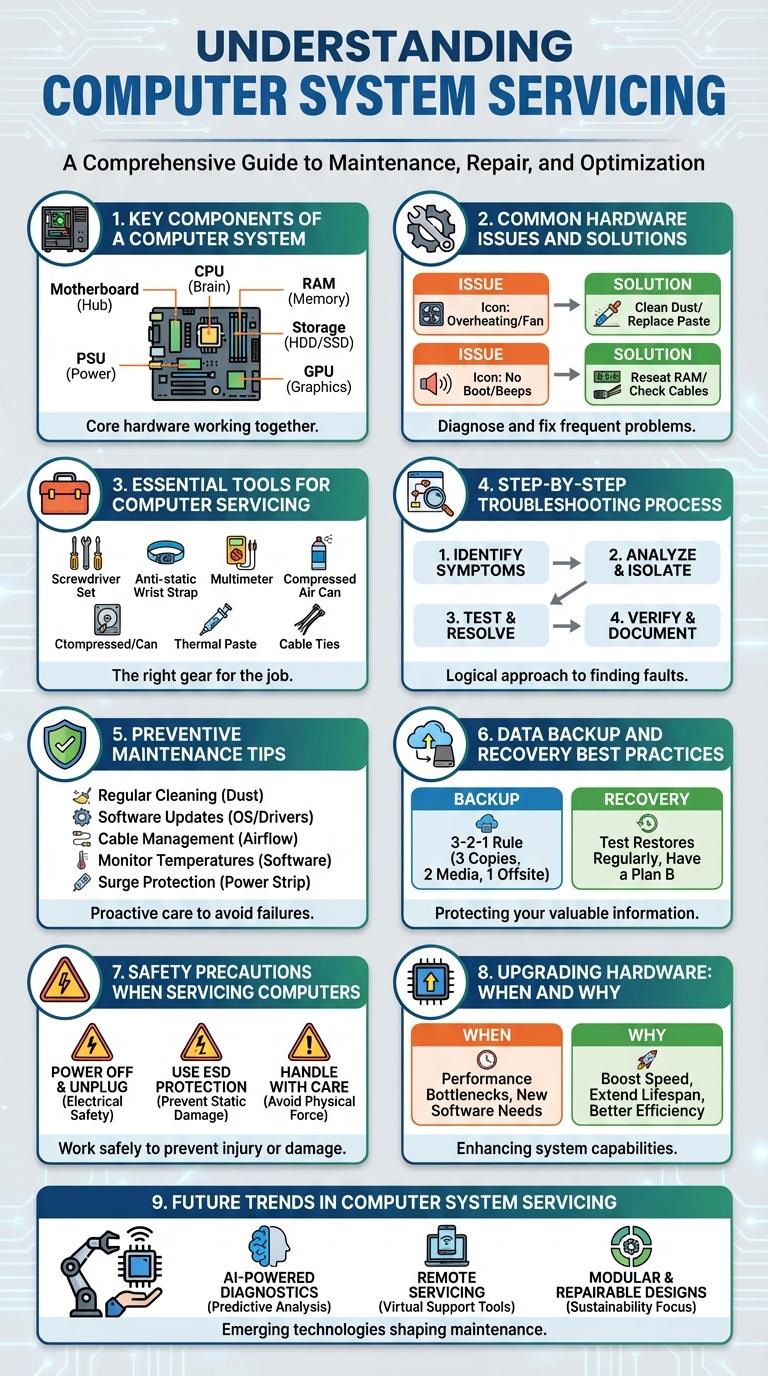
Computer system servicing involves regular maintenance tasks that ensure optimal performance, security, and longevity of hardware and software components. This process includes cleaning, updating software, checking for hardware issues, and optimizing system settings to prevent failures and data loss. Effective servicing reduces downtime and enhances the overall efficiency of computer systems.
Understanding Computer System Servicing
Computer system servicing involves maintaining and optimizing hardware and software components to ensure efficient performance. Understanding the key aspects of servicing helps prevent system failures and extends the lifespan of computing devices.
- Hardware Maintenance - Regular cleaning and component checks prevent overheating and physical damage.
- Software Updates - Installing patches and updates fixes vulnerabilities and improves system functionality.
- System Diagnostics - Running diagnostic tools identifies issues and allows timely repairs to avoid data loss.
Key Components of a Computer System
Computer system servicing involves maintaining and optimizing hardware and software components to ensure efficient performance. Understanding the key components helps technicians diagnose issues and perform effective repairs.
- Central Processing Unit (CPU) - The CPU executes instructions and processes data to perform tasks within the computer system.
- Random Access Memory (RAM) - RAM temporarily stores data and program instructions for quick access during operation.
- Storage Devices - Hard drives and solid-state drives provide long-term data storage essential for system functionality.
- Motherboard - The motherboard connects all components, enabling communication between the CPU, memory, and peripherals.
- Power Supply Unit (PSU) - The PSU delivers stable electrical power to all computer components, ensuring reliable operation.
Proper servicing of these components enhances system lifespan and performance.
Common Hardware Issues and Solutions
Computer system servicing often addresses common hardware issues such as overheating, hard drive failures, and faulty RAM. Overheating can be resolved by cleaning dust from fans and applying new thermal paste, while hard drive failures typically require diagnostics and data backup before replacement. Faulty RAM is diagnosed through memory tests and solved by reseating or replacing the memory modules.
Essential Tools for Computer Servicing
Essential tools for computer system servicing include screwdrivers, anti-static wrist straps, and diagnostic software. Screwdrivers enable technicians to open and secure various computer components safely. Anti-static wrist straps protect sensitive parts from electrostatic discharge, while diagnostic software helps identify hardware and software issues quickly.
Step-by-Step Troubleshooting Process
Computer system servicing involves a structured troubleshooting process to identify and resolve hardware or software issues. Following a clear sequence of steps ensures efficient diagnosis and repair, minimizing downtime.
The first step is to clearly identify the problem by gathering detailed information from the user and system logs. Next, perform initial diagnostics using built-in tools to isolate the root cause of the issue before proceeding to repairs or replacements.
Preventive Maintenance Tips
Regular preventive maintenance enhances computer system reliability and extends hardware lifespan. Implementing simple care routines can prevent costly repairs and data loss.
- Clean Internal Components - Remove dust and debris from fans, vents, and circuit boards to prevent overheating and hardware failure.
- Update Software Regularly - Apply operating system and security patches to protect against vulnerabilities and improve system stability.
- Backup Data Frequently - Create scheduled backups of important files to avoid data loss during hardware malfunctions or cyberattacks.
Data Backup and Recovery Best Practices
Data backup and recovery are essential components of computer system servicing, ensuring that critical information remains safe and accessible despite hardware failures or cyber threats. Regularly scheduled backups reduce the risk of data loss and enable quick restoration of system functionality.
Effective best practices include using automated backup solutions, storing backups in multiple locations, and verifying backup integrity frequently. Implementing a clear recovery plan minimizes downtime and safeguards business continuity during unexpected data loss incidents.
Safety Precautions When Servicing Computers
| Safety Precaution | Description |
|---|---|
| Power Off and Unplug | Always switch off and disconnect the computer from the power source before opening or servicing to prevent electric shock. |
| Use Anti-Static Protection | Wear an anti-static wrist strap and work on an anti-static mat to protect components from electrostatic discharge. |
| Handle Components Carefully | Touch components by edges only and avoid direct contact with circuits to prevent damage. |
| Keep Workspace Clean | Maintain a clutter-free environment to avoid losing small parts and ensure safe operations. |
| Use Proper Tools | Select appropriate tools designed for electronics servicing to avoid damaging hardware or causing injury. |
Upgrading Hardware: When and Why
When should you consider upgrading your computer system hardware?
Upgrading hardware is essential when your current components can no longer support the latest software or when performance lags impact productivity. Modern hardware upgrades extend the system's lifespan and improve speed, reliability, and capacity.
Why is hardware upgrading important for computer systems?
Hardware upgrades enhance processing power, increase storage, and improve overall system stability. These improvements enable smoother multitasking, faster data access, and support for new technologies.
Which hardware components are commonly upgraded in a computer system?
Common upgrades include the CPU, RAM, storage drives (HDD or SSD), and graphics cards. Each component targets different performance aspects, such as speed, capacity, or graphical capabilities.
How does upgrading RAM affect computer performance?
Increasing RAM allows for more applications to run simultaneously without slowing down the system. It improves responsiveness and reduces load times during intensive tasks.
When is it more cost-effective to upgrade hardware rather than replacing the entire system?
Upgrading is ideal when core components like the motherboard and CPU remain compatible with newer hardware. Selective upgrades can provide significant performance boosts without the higher expense of a full system replacement.