
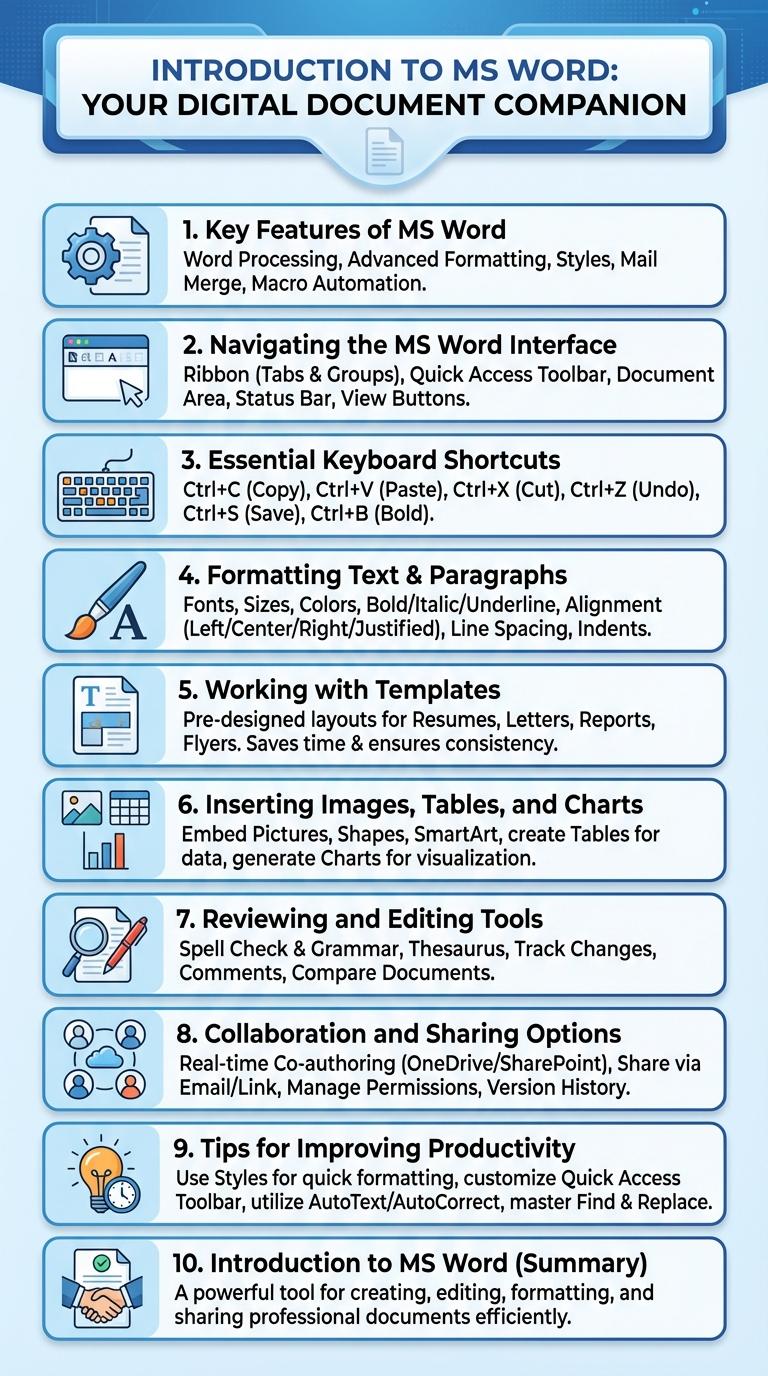
Microsoft Word offers powerful tools for creating and formatting documents efficiently. Infographics about MS Word highlight key features such as text editing, templates, and collaboration options. These visual guides simplify understanding and boost productivity for users at all skill levels.
Introduction to MS Word
Microsoft Word is a powerful word processing software widely used for creating, editing, and formatting documents. It is an essential tool for personal, academic, and professional communication.
- User-Friendly Interface - MS Word offers an intuitive layout with a ribbon toolbar that simplifies access to various tools and features.
- Versatile Formatting Options - It provides extensive options for text formatting, including fonts, styles, and paragraph alignment to enhance document appearance.
- Collaboration Features - Users can track changes, add comments, and collaborate in real-time with others through cloud integration.
Key Features of MS Word
Microsoft Word is a powerful word processing software widely used for creating, editing, and formatting text documents. It offers key features such as advanced formatting options, real-time collaboration, and integrated spelling and grammar checks. Users benefit from templates, multimedia support, and seamless integration with other Microsoft Office applications.
Navigating the MS Word Interface
Microsoft Word features a user-friendly interface designed for efficient document creation and editing. The Ribbon at the top organizes tools into tabs such as Home, Insert, and Review for easy access.
The Navigation Pane on the left helps users browse through headings, pages, or search results quickly. Status Bar at the bottom provides information on page number, word count, and document view modes.
Essential Keyboard Shortcuts
| Keyboard Shortcut | Function |
|---|---|
| Ctrl + C | Copy selected text or object |
| Ctrl + V | Paste copied text or object |
| Ctrl + X | Cut selected text or object |
| Ctrl + Z | Undo last action |
| Ctrl + Y | Redo last undone action |
Formatting Text & Paragraphs
Microsoft Word offers powerful tools for formatting text and paragraphs to create professional documents. Proper formatting enhances readability and visual appeal in any written content.
- Font Styles - Change font type, size, and color to emphasize important text and improve aesthetics.
- Paragraph Alignment - Align text left, center, right, or justify to achieve the desired layout and structure.
- Line and Paragraph Spacing - Adjust spacing to enhance clarity and prevent cluttered text blocks.
- Bullets and Numbering - Organize information efficiently using lists for easy reading and reference.
- Indentation - Control the indentation of paragraphs to create hierarchy and distinct sections within the document.
Mastering text and paragraph formatting in MS Word enables the creation of clear and well-organized documents tailored to specific needs.
Working with Templates
Microsoft Word offers a wide range of templates designed to simplify document creation. These templates include preformatted layouts for resumes, reports, brochures, and more, helping users save time and maintain consistency.
Users can customize templates by editing text, images, and styles to suit specific needs. Word also allows saving customized templates for future use, enhancing productivity and ensuring uniformity across documents.
Inserting Images, Tables, and Charts
How do you insert images in MS Word?
To insert images, go to the "Insert" tab and click "Pictures." Choose from options like "This Device," "Stock Images," or "Online Pictures" to add visuals to your document effortlessly.
What is the process for adding tables in MS Word?
Select the "Insert" tab, then click "Table." You can drag to select the number of rows and columns or use "Insert Table" for precise sizing and layout customization.
How can charts be added in MS Word documents?
Navigate to the "Insert" tab and click "Chart." Choose from multiple types such as bar, line, or pie charts to visually represent data clearly and effectively.
| Feature | Steps |
|---|---|
| Insert Images | Insert tab > Pictures > Select source |
| Insert Tables | Insert tab > Table > Select size or Insert Table |
| Insert Charts | Insert tab > Chart > Choose chart type |
Reviewing and Editing Tools
Microsoft Word offers a comprehensive set of reviewing and editing tools designed to enhance document collaboration and accuracy. These tools streamline the process of tracking changes, adding comments, and comparing document versions efficiently.
Track Changes enables users to make edits visible, allowing reviewers to accept or reject modifications seamlessly. The Comments feature facilitates clear communication among multiple contributors by enabling targeted feedback within the text. Document comparison quickly identifies differences between versions, ensuring precision during the editing process.
Collaboration and Sharing Options
Microsoft Word offers robust collaboration and sharing features designed to enhance teamwork and streamline document editing. Users can easily share files and work simultaneously with colleagues in real-time.
- Real-Time Co-Authoring - Multiple users can edit the same document simultaneously, with changes visible instantly to all collaborators.
- Cloud Integration with OneDrive - Documents can be saved to OneDrive, allowing seamless access and sharing across devices and users.
- Commenting and Track Changes - Editors can leave comments and track modifications to facilitate clear communication and revision history.